MASTG-TECH-0139: Attach to WKWebView
Safari Web Inspector
Enabling the Safari Web Inspector on iOS allows you to remotely inspect the contents of a WebView from a macOS device. This is particularly useful in apps that expose native APIs using a JavaScript bridge, such as hybrid apps.
Starting with iOS 16.4, apps must explicitly opt in to inspection for WKWebView content by setting isInspectable to true:
let webView = WKWebView()
...
if #available(iOS 16.4, *) {
    webView.isInspectable = true
}
Apps installed from the App Store can still be inspected if the app enables WKWebView.isInspectable = true. On jailbroken devices, you can use GlobalWebInspect, to force enable WebView inspection for apps that do not opt in themselves. After installing it, Safari Web Inspector can attach to WKWebView ( WebViews) instances in those apps.
To activate web inspection, follow these steps:
- On the iOS device, open the Settings app: go to Safari -> Advanced and toggle on Web Inspector.
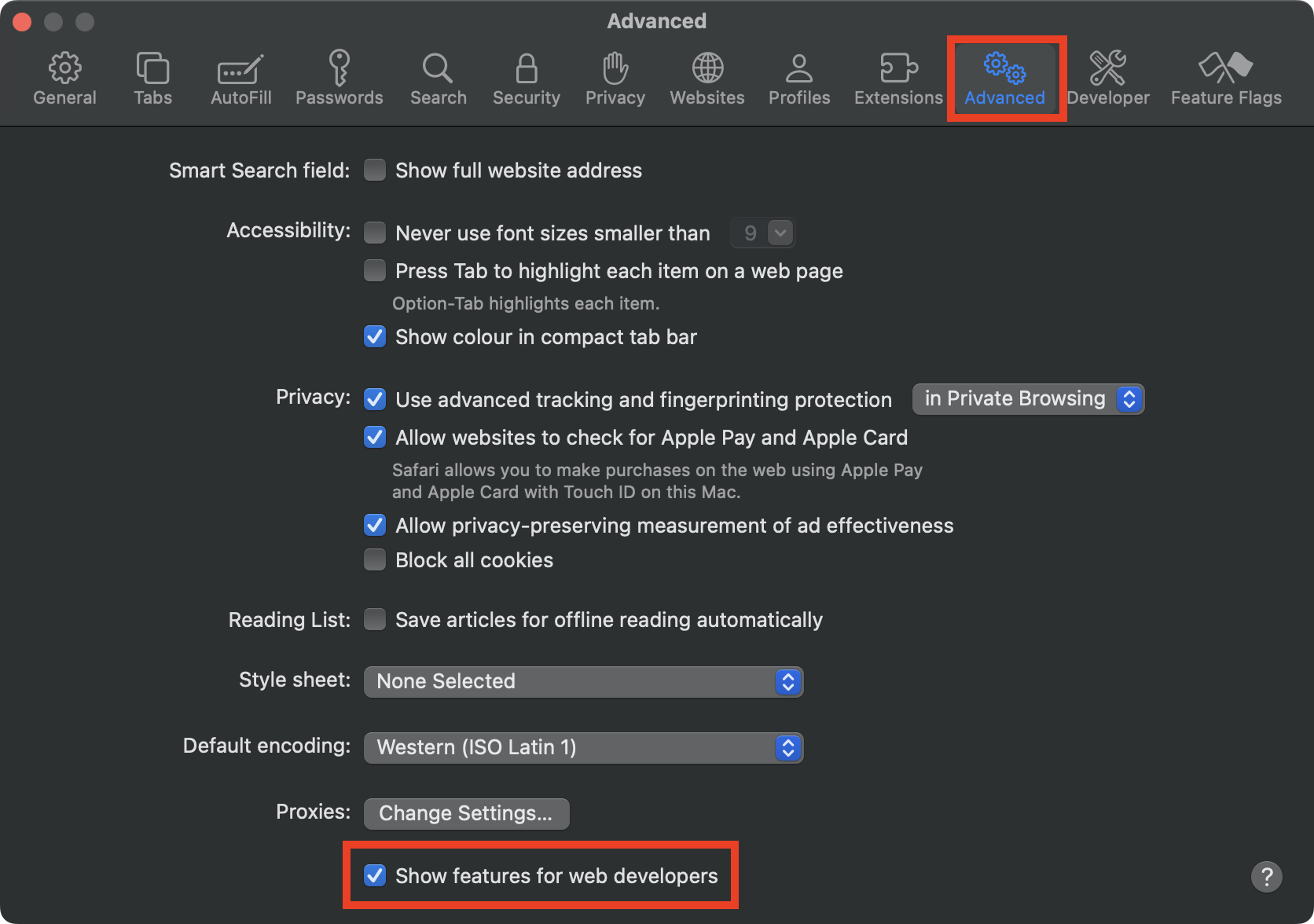
- On the macOS device, open Safari: in the menu bar, go to Safari -> Settings -> Advanced and enable Show features for web developers.
- Connect your iOS device to the macOS device and unlock it: the iOS device name should appear in the Develop menu.
- If needed, in macOS Safari go to Develop -> 'iOS device name' -> Use for Development and trust the device.
To open Web Inspector and debug a WebView:
- On iOS, open the app and navigate to any screen containing a WebView.
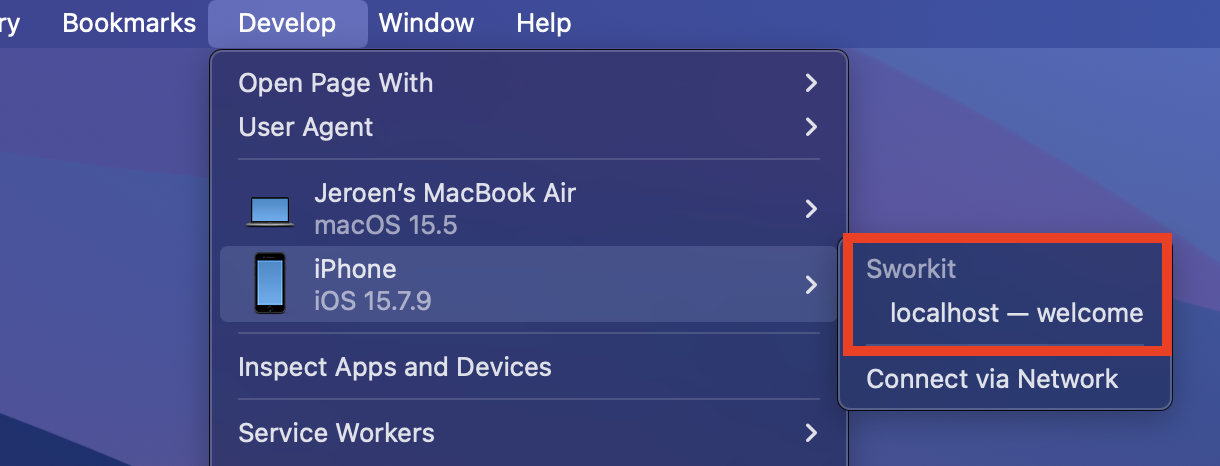
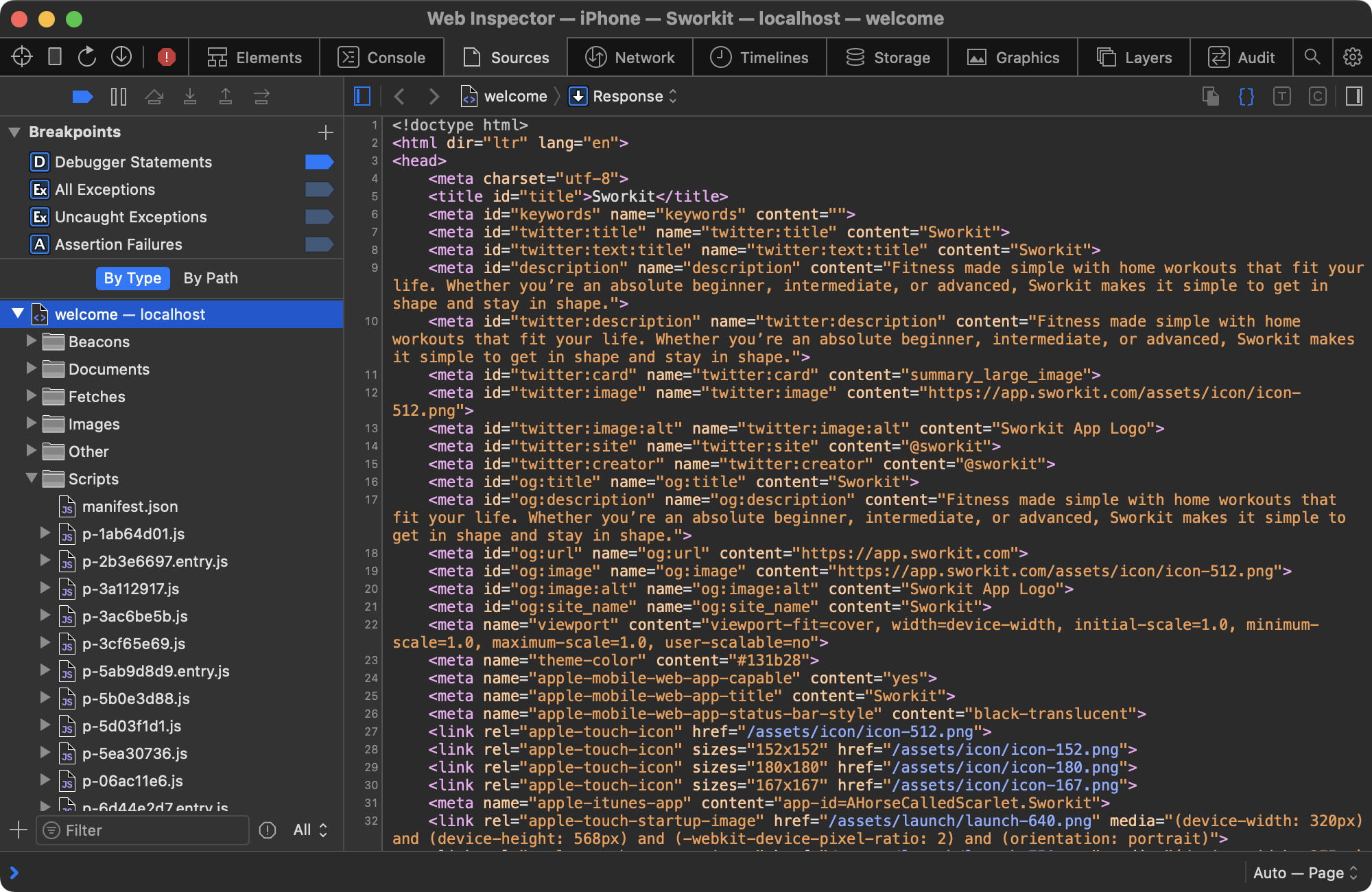
- In macOS Safari, go to Develop -> 'iOS Device Name', and you should see the name of the WebView based context. Click it to open Web Inspector.
Now you're able to debug the WebView as you would with a regular web page in your desktop browser.
If everything is set up correctly, you can attach to any WebView with Safari: