MASTG-TECH-0059: Accessing App Data Directories
Using ipainstaller (Jailbroken Devices Only)
Before you can access the app directories, you need to know where they are located in the filesystem.
Connect to the terminal on the device ( Accessing the Device Shell) and run ipainstaller -i:
iPhone:~ root# ipainstaller -i OWASP.iGoat-Swift
...
Bundle: /private/var/containers/Bundle/Application/3ADAF47D-A734-49FA-B274-FBCA66589E67
Application: /private/var/containers/Bundle/Application/3ADAF47D-A734-49FA-B274-FBCA66589E67/iGoat-Swift.app
Data: /private/var/mobile/Containers/Data/Application/8C8E7EB0-BC9B-435B-8EF8-8F5560EB0693
Now you can cd into these directories to explore their content. If you want to extract these directories to your computer for further analysis, you can use Host-Device Data Transfer.
Using objection (iOS) (Jailbroken and Non-Jailbroken Devices)
Using objection (iOS)'s env command will also show you all the app's directory information. In this example, we're connecting to iGoat-Swift:
OWASP.iGoat-Swift on (iPhone: 11.1.2) [usb] # env

Name               Path
-----------------  -------------------------------------------------------------------------------------------
BundlePath         /var/containers/Bundle/Application/3ADAF47D-A734-49FA-B274-FBCA66589E67/iGoat-Swift.app
CachesDirectory    /var/mobile/Containers/Data/Application/8C8E7EB0-BC9B-435B-8EF8-8F5560EB0693/Library/Caches
DocumentDirectory  /var/mobile/Containers/Data/Application/8C8E7EB0-BC9B-435B-8EF8-8F5560EB0693/Documents
LibraryDirectory   /var/mobile/Containers/Data/Application/8C8E7EB0-BC9B-435B-8EF8-8F5560EB0693/Library
Let's take a look at the Bundle directory (/var/containers/Bundle/Application/3ADAF47D-A734-49FA-B274-FBCA66589E67/iGoat-Swift.app):
OWASP.iGoat-Swift on (iPhone: 11.1.2) [usb] # ls /var/containers/Bundle/Application/3ADAF47D-A734-49FA-B274-FBCA66589E67/iGoat-Swift.app
NSFileType      Perms  NSFileProtection    ...  Name
------------  -------  ------------------  ...  --------------------------------------
Directory         493  None                ...  Frameworks
Regular           420  None                ...  embedded.mobileprovision
Regular           420  None                ...  Info.plist
Regular           493  None                ...  iGoat-Swift
...
Go to the Documents directory and list all files using ls.
...itudehacks.DVIAswiftv2.develop on (iPhone: 13.2.3) [usb] # ls
NSFileType      Perms  NSFileProtection                      Read    Write    Owner         Group         Size      Creation                   Name
------------  -------  ------------------------------------  ------  -------  ------------  ------------  --------  -------------------------  ------------------------
Directory         493  n/a                                   True    True     mobile (501)  mobile (501)  192.0 B   2020-02-12 07:03:51 +0000  default.realm.management
Regular           420  CompleteUntilFirstUserAuthentication  True    True     mobile (501)  mobile (501)  16.0 KiB  2020-02-12 07:03:51 +0000  default.realm
Regular           420  CompleteUntilFirstUserAuthentication  True    True     mobile (501)  mobile (501)  1.2 KiB   2020-02-12 07:03:51 +0000  default.realm.lock
Regular           420  CompleteUntilFirstUserAuthentication  True    True     mobile (501)  mobile (501)  284.0 B   2020-05-29 18:15:23 +0000  userInfo.plist
Unknown           384  n/a                                   True    True     mobile (501)  mobile (501)  0.0 B     2020-02-12 07:03:51 +0000  default.realm.note

Readable: True  Writable: True
If you want to inspect plist files, you can use the ios plist cat command
...itudehacks.DVIAswiftv2.develop on (iPhone: 13.2.3) [usb] # ios plist cat userInfo.plist
{
        password = password123;
        username = userName;
}
Using Grapefruit (Jailbroken and Non-Jailbroken Devices)
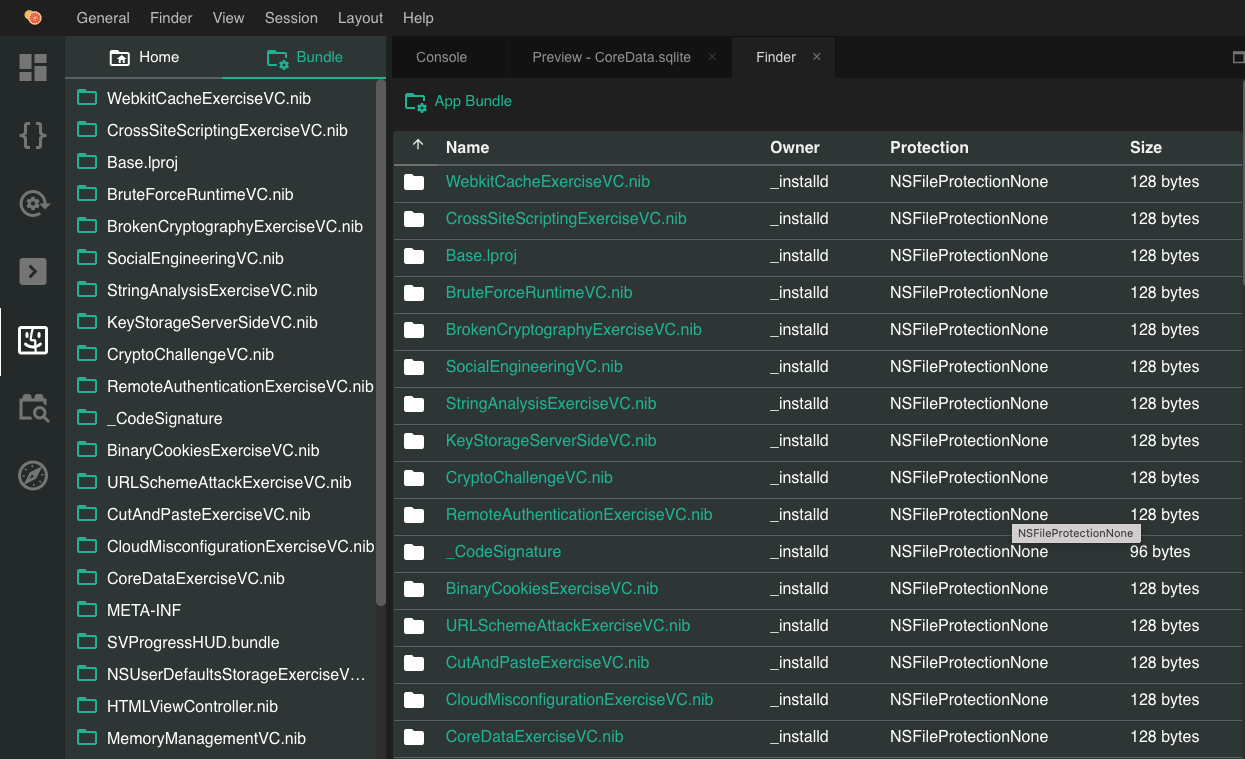
You can use Grapefruit to access the app directories.
Go to Finder -> Bundle to see the application bundle:
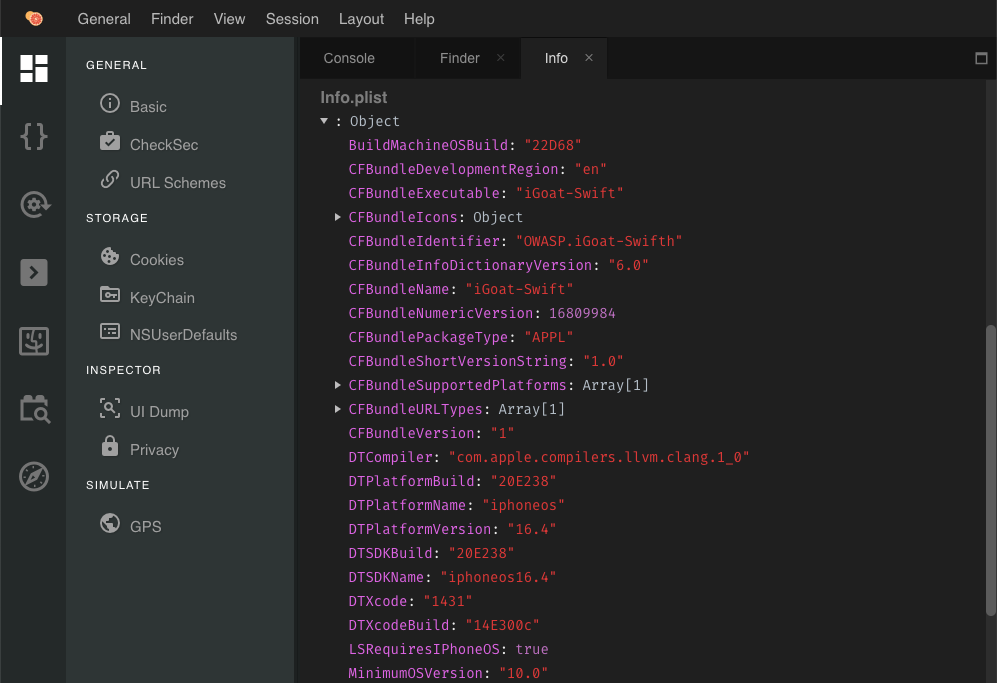
You can inspect any file, for example the Info.plist file:
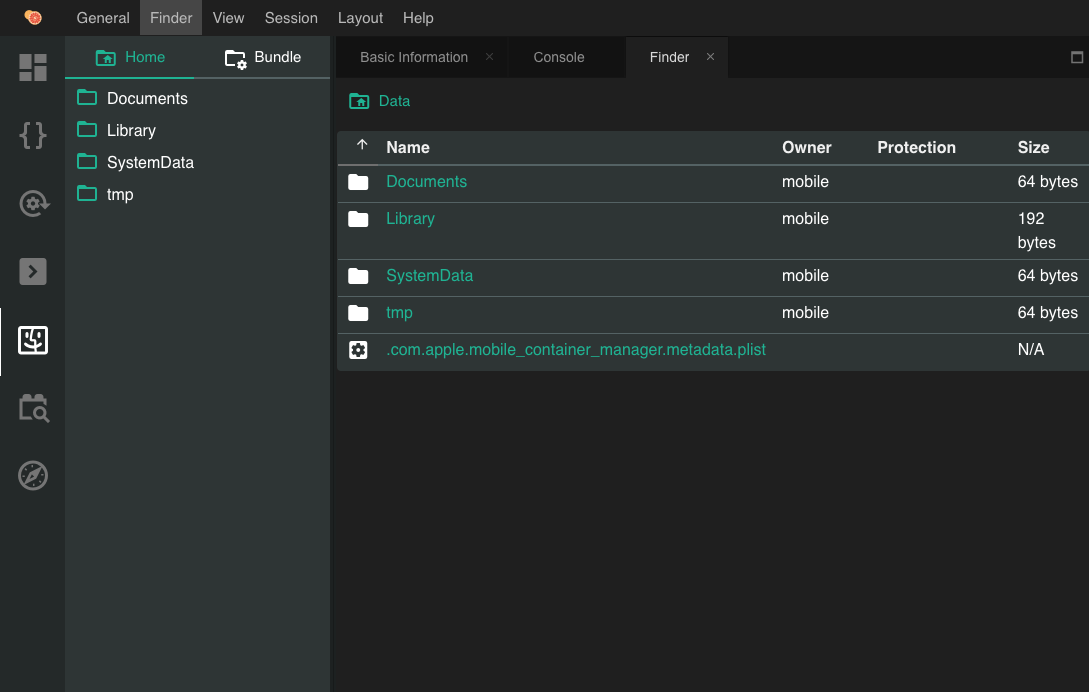
Go to Finder -> Home to see the application data directory:
Using a Terminal in macOS (iOS Simulator Only)
To test local storage and verify what data is stored in it, an iOS device is not required. With access to the source code and Xcode, the app can be built and deployed in the iOS simulator. The file system of the current iOS simulator device is located at ~/Library/Developer/CoreSimulator/Devices.
Once the app is running in the iOS simulator, you can navigate to the directory of the latest simulator started with the following command:
$ cd ~/Library/Developer/CoreSimulator/Devices/$(ls -alht ~/Library/Developer/CoreSimulator/Devices | head -n 2 | awk '{print $9}' | sed -n '1!p')/data/Containers/Data/Application
The command above will automatically find the UUID of the most recently started simulator and navigate to the Applications Data directory. From there, you can cd into the app's data directory by looking for the app's name in the Documents folder of each application directory.
Using Xcode (Jailbroken and Non-Jailbroken Devices - Debug Builds Only)
You can also use Xcode to download the app container directly from a connected device. This method only works for debug builds of the app.
Go to Window -> Devices and Simulators in Xcode. Select your connected device from the left sidebar, then select the app from the list of installed apps and click on the gear icon. From the dropdown menu, select Download Container....
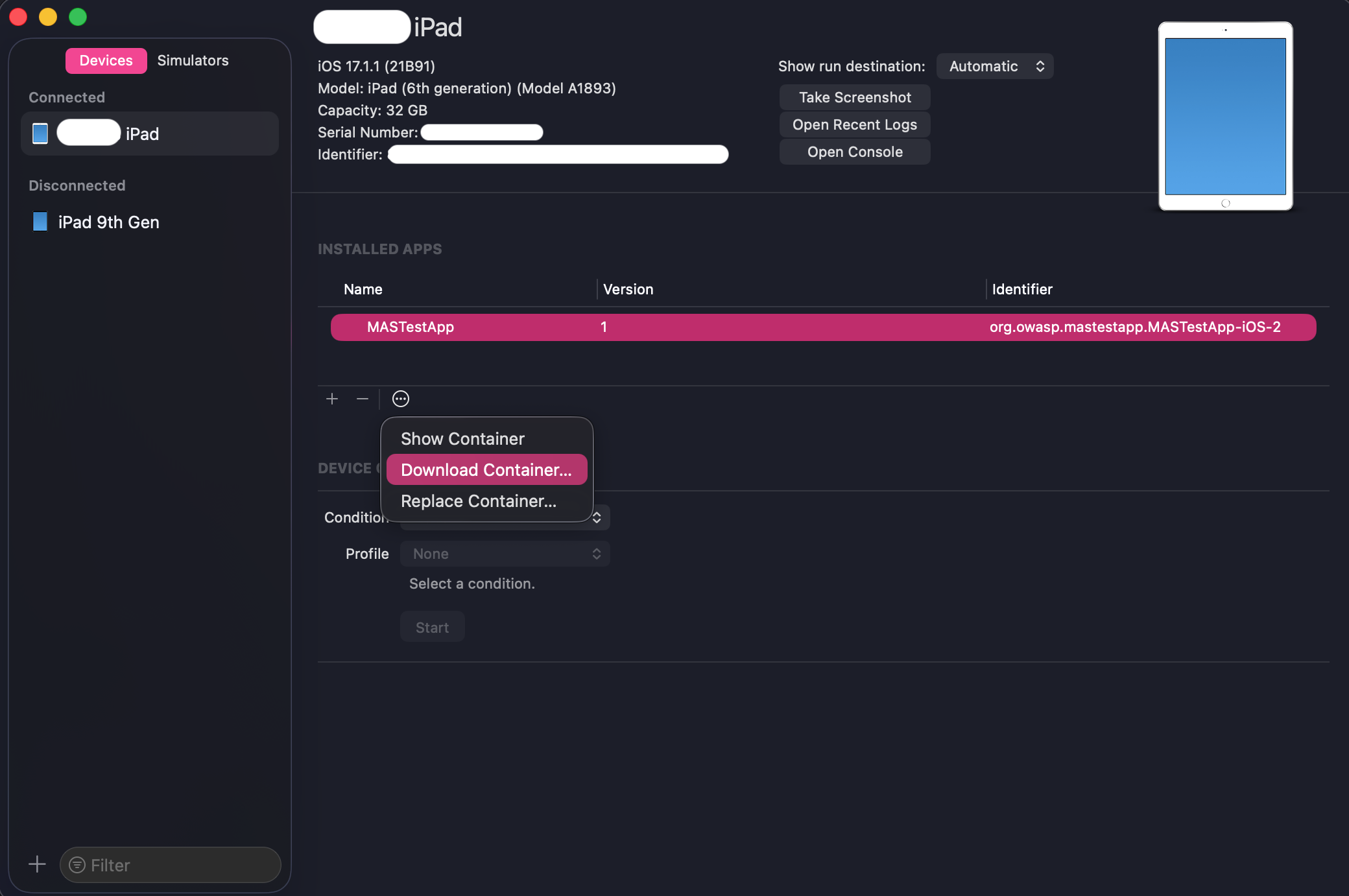
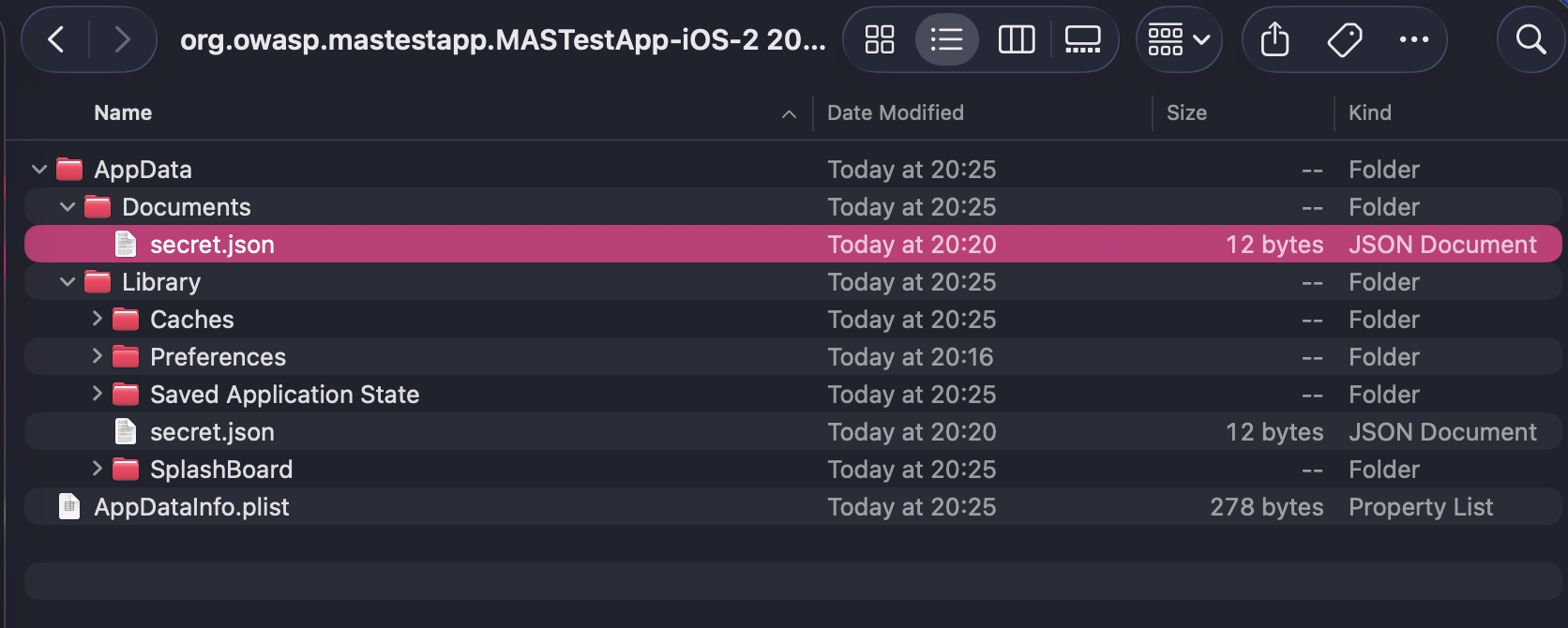
This will allow you to save the app container to your local machine as a .xcappdata file. Once downloaded, right-click the container file and select Show Package Contents to explore the app's directory structure.
Tests
MASTG-TEST-0387: References to Storage Integrity Check APIs MASTG-TEST-0090: Testing File Integrity Checks MASTG-TEST-0302: Sensitive Data Unencrypted in Private Storage Files MASTG-TEST-0299: Data Protection Classes for Files in Private Storage